
A vectorscope plugin shows the relationship between the left and right channels of your audio. Use it with a correlation meter and a mono listening check to judge stereo width, spot suspicious channel relationships, and decide whether a widening move actually helps. The scope gives you evidence. Your ears make the decision.
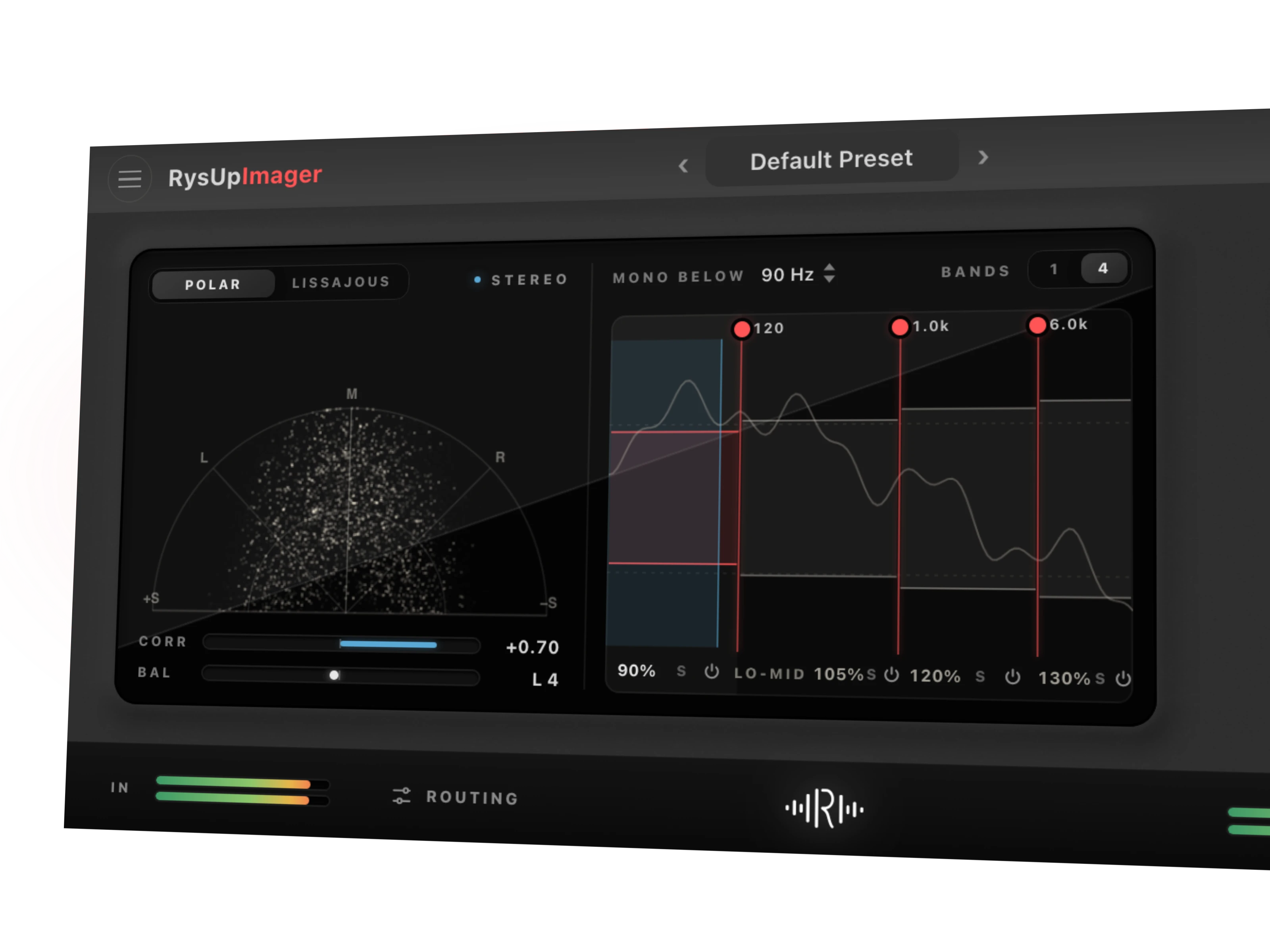
If you want a vectorscope alongside width controls, RysUpImager puts Polar and Lissajous views, correlation, balance, and four band imaging in one $9.99 plugin. If you only need to inspect a finished mix, start with the metering tools already in your DAW. You do not need another purchase just to find out whether your vocal vanishes in mono.
Disclosure: Rys Up Audio makes RysUpImager. Metering principles and current product facts were checked October 14, 2026.
What does a vectorscope actually show?
An audio vectorscope plots the stereo image. It answers a different question from a spectrum analyzer, which shows frequency content. A scope helps you see the relationship between channels; it does not tell you whether the vocal has enough presence or the bass is too loud.
On the rotated Lissajous display described in iZotope's Imager documentation, similar left and right signals form a narrow vertical pattern. Broader shapes show more difference between channels. A strongly horizontal pattern calls for a mono check. Polar displays express the image through angles and distance from the center. Read the selected mode and its labels before interpreting the shape.
That last step matters. Do not apply one screenshot's rules blindly to another plugin. First play a centered mono source through your meter and observe its display. That gives you a useful reference for the view you are using.
Read the pattern without chasing a perfect shape
| What you notice | What to check next |
|---|---|
| A narrow, centered trace | Listen for the stable center you want. A lead vocal does not need a giant shape. |
| A fuller shape during the chorus | Compare the chorus with the verse at similar listening levels. Confirm the extra space supports the arrangement. |
| A pattern that leans to one side | Check deliberate panning and the channel balance before reaching for a width control. |
| A trace that spreads strongly across the horizontal axis in a rotated Lissajous view | Watch correlation, then listen in mono to identify any audible loss. |
| Almost no trace | Check playback, the meter's input, and the track routing before diagnosing the mix. |
A narrow verse and a broad chorus can be exactly right. A wide reverb return can also be useful while the dry lead stays centered. Write down the musical job before adjusting anything: keep the lead solid, open the backing vocals, or check a stereo sample. Otherwise, you can spend an hour making the display prettier while the mix gets worse.
Use correlation and mono listening together
Correlation describes how similar the channels are. At +1, they match; at 0, they are uncorrelated; at negative 1, they are exact polarity opposites. iZotope notes that a brief negative reading can flag a possible mono issue without automatically proving a problem. Apple's correlation meter guide also explains that negative readings indicate material that can cancel when combined into mono.
Do not turn those numbers into a universal target. A positive full mix reading does not tell you how clearly every backing vocal, effect return, and instrument survives. Solo the suspect part, listen to the full arrangement, and compare both in mono.
The useful question is specific: does the lyric become harder to understand, does the bass lose its foundation, or does an important hook drop back? If the answer is yes, reduce the processing on that part and compare again. A momentary meter excursion and a missing chorus hook deserve different responses.
Where to put your vectorscope plugin
For a widening decision, place the meter after the processing you are judging. Then listen downstream of the same processing. Metering before a widener while listening after it gives you two different versions of the signal.
On the mix output, a scope helps you inspect the combined arrangement. On a backing vocal bus or stereo effects return, it helps you isolate a suspect layer. Use both positions when the full mix looks acceptable but one part changes dramatically in mono.
Check what the plugin actually measures. Some integrated displays monitor a particular output rather than the audio at their apparent position inside a chain. Also, leave room for any later stereo processing: a check before the final chain cannot certify what that chain does afterward.
A quick vocal width check you can repeat
- Choose a demanding passage. Loop a chorus with the lead, backing vocals, bass, and effects playing together. Add a sparse verse check afterward.
- Establish the baseline. Bypass the widening move, listen in stereo, and note how clearly the lead sits in the center.
- Enable the processing. Match the apparent loudness as closely as you can. Louder can sound more impressive even when the width decision is worse.
- Read the scope and correlation. Watch the passage over time. Avoid judging the entire mix from a single frozen frame.
- Switch to mono. Listen for changes in lyric clarity, body, bass, and the backing vocal hook. Some stereo space will change; identify the losses that damage the song.
- Adjust the responsible layer. Pull back its width or effect amount, repeat the check, and return to stereo before saving.
For arrangement and processing ideas after this check, use our guide to making vocals wider. Recording format is a separate decision, covered in whether to record vocals in mono or stereo.
What to look for when choosing a vectorscope plugin
Choose a readable display, a clearly labeled correlation meter, channel balance information, and a practical way to audition mono. Confirm the plugin's format fits your DAW and computer. A beautiful meter you cannot run in your session solves nothing.
If analysis is your only goal, inspect your DAW's existing tools first. If you want to change width and watch the result in the same window, an imager with built in metering can keep that decision in one place. Our stereo imager plugin guide covers that broader buying decision.
Read and adjust width in RysUpImager
RysUpImager combines Polar and Lissajous scope views with correlation and balance meters. Its four band mode lets you widen or narrow selected frequency regions. Mono Below focuses the low end beneath your chosen cutoff, and Mono check in Routing lets you hear the fold while you work. See the current controls and formats on the RysUpImager product page.
Those controls give you ways to respond to what you hear. They do not guarantee that every processed source will sound unchanged in mono. Keep checking the vocal, the effects, and the completed mix. The point is to make a better decision faster, then get back to finishing the record.
Install and manage the plugin through the RysUpHub installer. If you need the wider chain, RysUpSuite includes the current paid lineup plus future paid releases while your subscription is active. Browse the current plugin lineup to choose the tools your session actually needs.