
To make vocals sound robotic, choose the effect before you start stacking plugins. A vocoder makes the voice behave like a talking synth. Fast pitch correction keeps the original performance but snaps its notes into a harder shape. Formant shifting changes the apparent size and character of the voice. Pick the result you want, feed the effect a clean recording, and keep the words clear.
The fast answer: start with a vocoder when you want a played robot voice, or fast pitch correction when you want the singer's melody to stay recognizable. If you want the vocoder route in one plugin, RysUpVocoder accepts MIDI, incoming voice, or sidechain input and gives you two controllable voice layers.
Disclosure: Rys Up Audio makes RysUpVocoder. The recording and method checks below work with other tools too. Product and host facts were checked October 14, 2026.
Choose your robot voice first
“Robotic” covers several sounds. Decide whether you want a synthetic instrument speaking your lyrics, an aggressively tuned lead, or a strange character voice. That decision changes the signal path and the performance you need.
| Wanted result | Start here | What controls the notes |
|---|---|---|
| A talking synth or chorded hook | Vocoder | The carrier or played MIDI notes |
| A hard, stepped version of the sung melody | Fast pitch correction | The performance and allowed scale notes |
| A smaller, larger, or stranger voice character | Formant shift | Pitch can stay where it was |
Try one method on a short phrase before combining them. You will hear which part of the transformation earns its place, and you can remove a bad move without rebuilding the entire chain.
Prepare a dry vocal with clear words
Use a clean lead recording with one voice. Trim the gaps and obvious clicks, keep breaths that help the phrase, and leave some headroom. Start without printed reverb, delay, or chorus. A vocoder needs readable speech movement; a pitch detector needs a clear note to follow.
Pick a four to eight bar section that contains a sustained vowel, a short consonant, and the actual rhythm of the hook. A long “ah” can sound impressive while hiding the fact that the words fall apart. A real lyric phrase makes that problem obvious.
If the source itself is noisy or uneven, fix the capture and edit first. The clean vocal recording walkthrough explains the input and monitoring stage. Keep the original take available when you begin the effect pass.
Build the vocoder path
A vocoder combines a voice with a carrier. The vocal supplies the changing shape of the words. The carrier supplies the synthesized tone that you hear speaking. A bright, sustained carrier usually gives the effect more useful material than a quiet, short sound with little harmonic detail.
- Put the vocal into the vocoder's analysis or vocal path.
- Choose an internal carrier, or route a synth into the carrier path when your plugin requires one.
- Play a simple note or chord that lasts through the whole word.
- Audition the processed signal before adding ambience.
- Only add movement and extra layers after the phrase is understandable.
The exact routing belongs to the host and plugin you are using. An audio input and a MIDI input solve different parts of the job. If notes end before consonants do, the voice can seem to disappear even while the recording is playing.
For the specific VST3 routing in FL Studio, use the existing FL Studio vocoder guide. It covers that host's ports and MIDI setup separately from this sound choice.
Start with one RysUpVocoder layer
Install and activate RysUpVocoder through RysUpHub, then insert it on the vocal path in your DAW. Choose MIDI input when you want played notes to drive the sound. Use the host's MIDI routing to send it a simple, sustained part.
Keep Layer A on and Layer B off for the first pass. Choose one character and move the blend toward Processed so you can judge the synthesized voice clearly. Keep pitch and formant changes small while the basic notes and words are still being checked. The key and scale guidance should match the song when you use a tuned mode.
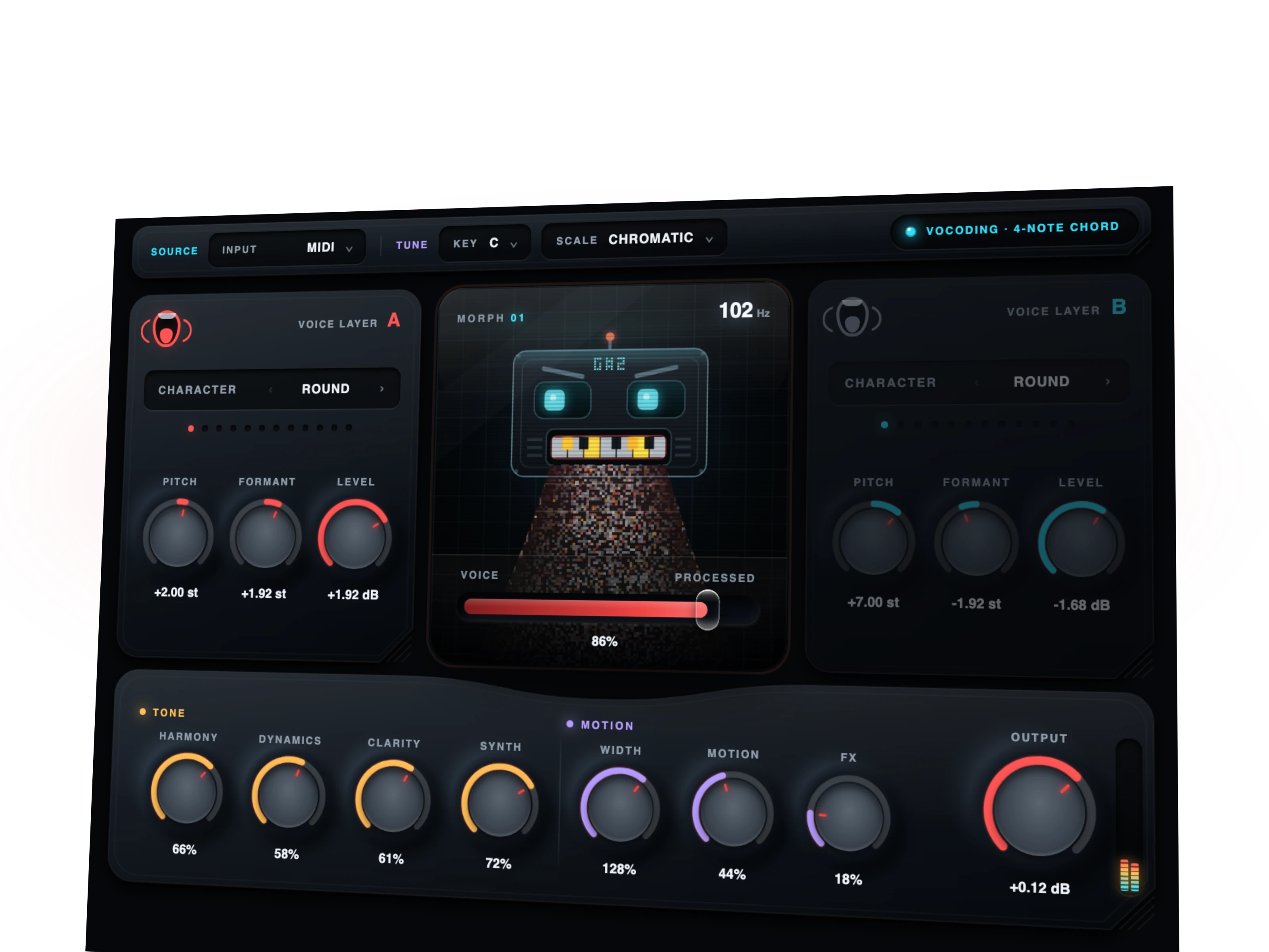
Once the first layer works, switch on Layer B and give it a deliberate role. Try a supporting harmony or a different character at a lower level. Avoid adding another full volume voice simply because a second layer is available.
Hear the vocoder texture
These are the existing RysUpVocoder product demonstration clips. Use them to hear a dry voice and a processed texture. They are product examples, rather than a claim that every recording or every starting setting will produce the same result.
Before
Processed example
Listen to the vowels and the ends of words. Then test your own phrase with the beat playing. A texture that is exciting in isolation still needs to carry the lyric in the song.
Use hard correction for stepped notes
Use fast pitch correction when the appeal is the sharp movement between notes in the original performance. Choose the song's key and allowed notes, then increase correction speed until the effect becomes intentional. Faster correction can sound more artificial, but it cannot choose a good melody for you.
Work on a single, clearly pitched vocal. Reverb, chorus, and several voices mixed together can make detection less reliable. Keep the pitch stage before those effects while you are checking the notes. If the hook needs an expressive bend, decide whether the correction should keep it or replace it with the hard effect.
The pitch correction workflow covers that separate tuning job. RysUpTune is the dedicated Rys Up tuning route; the vocoder route remains the better starting point when you want a played synthetic voice.
Keep the consonants readable
The words usually fail before the vowels do. Check short sounds such as S, F, T, and K in the busiest part of the arrangement. Reduce extra layers or ambience if they cover those attacks. Where your vocoder provides an unvoiced or clarity control, adjust it while listening to the whole phrase.
A little original voice mixed underneath can help the lyric, but it changes how synthetic the result feels. Choose that balance deliberately. If the goal is a fully processed texture, try a clearer carrier and simpler notes before using the dry vocal to disguise a routing problem.
Keep EQ and dynamics decisions tied to the recording. The vocal chain order guide helps place the cleanup and space around the effect without making every processor do the same job.
Change character after the notes work
Formant movement can make the robot voice sound smaller, larger, brighter, or stranger. Keep the notes stable while you try that change, so you can hear whether character is the part that improves the hook.
Use the effect on a copy or save a reversible setting. Make one change, compare it, then try the next. The separate formant shifting workflow explains that axis without turning every character decision into a pitch move.
Fix the common robot voice failures
- No output: confirm the voice reaches the analysis path, the carrier exists, and the required MIDI notes reach the plugin.
- Words cut off: lengthen the played notes and check the vocal and carrier envelopes before adding effects.
- The notes feel wrong: verify the song key, scale guidance, played chord, and MIDI timing.
- The sound is blurry: simplify the layers and remove reverb or delay while checking the dry effect.
- The hook is harsh: reduce excessive character or formant movement, then adjust the tone and output with the beat playing.
- The effect wins only when it is louder: match the output to the bypassed phrase before choosing the setting.
Save a version that works in the song
Check the phrase in stereo, then listen to its mono fold. Keep the lead understandable at a normal playback level. Save the plugin setting and project before printing a new clip. Keep a dry source track so the performance survives a later sound change.
You do not need to turn every line into the same robot. A processed answer, a chorded hook, and a dry lead can each have a clear place. Let the arrangement tell you which voice belongs where.
Choose your plugin path
RysUpVocoder is $29.99 to own outright on the current product page. It gives you MIDI, voice, and sidechain input choices, two voice layers, and the processed blend in one window. If you want the wider paid plugin catalog, RysUpSuite includes the current paid lineup and future paid releases while a subscription is active.
Browse the plugin lineup or install through RysUpHub. For the song's overall vocal tone after the creative effect, the vocal preset library gives you the next DAW specific starting point.
Official sources
Checked October 14, 2026: Ableton Live 12 vocoder reference, Apple's vocoder basics, Image Line Pitcher reference, and the current RysUpVocoder product page. The public product media above belongs to Rys Up Audio.