
ARA and transfer mode can reach the same destination: a cleaned vocal you can audition inside the session. The difference is how the plugin receives the audio. ARA lets a compatible DAW share region data directly. Transfer mode records the passage during playback, processes that captured audio, and lets you bring the result back into the arrangement.
The practical answer: Use ARA when your DAW and plugin bind it reliably. Use transfer mode when they do not. On an Apple Silicon Mac, native Logic Pro does not fully support third party ARA extensions. You can keep Logic running natively and use RysUpNoise Pro HQ Transfer without closing the session or switching Logic to Rosetta.
Disclosure: Rys Up Audio makes RysUpNoise Pro. This guide separates the host workflow from the restoration engine so you can choose the method that actually works in your session.
ARA vs transfer mode at a glance
| Question | ARA | Transfer mode |
|---|---|---|
| How does the plugin get audio? | The DAW shares region and timeline context with the plugin. | The plugin captures the passage while the DAW plays it. |
| Do you play the passage first? | Usually only a brief playback is needed so the host transfers current song information. | Yes. Play the full passage you want to process while capture is armed. |
| Does the method decide sound quality? | No. ARA is an access and workflow layer. | No. Quality depends on the restoration engine and settings. |
| Native Logic on Apple Silicon? | Third party ARA does not fully bind in native Logic. | Yes. Transfer works through normal plugin playback. |
| Logic running in Rosetta? | Logic can bind compatible third party ARA plugins. | Yes. |
| Best reason to use it | Direct region access and edits that stay connected to the DAW timeline. | Broad host compatibility without changing how the DAW launches. |
What ARA actually does
ARA means Audio Random Access. It is an extension that lets a DAW and a compatible plugin share information about the song, including regions, associated audio files, timing, and analysis data. Instead of waiting for the plugin to hear every second in real time, the host gives it structured access to the material.
That makes editing feel connected to the arrangement. Apple says that Logic can preserve ARA edits when a region is moved or copied, provided the ARA plugin is inserted in the first Audio Effect slot. Apple also notes that Flex is disabled on that track in ARA mode and that some ARA plugins may have limitations with track Freeze.
ARA does not automatically make a restoration model sound better. It changes access to the audio. If the same cleanup model receives the same signal at the same settings, the access method alone is not a quality upgrade.
What transfer mode does
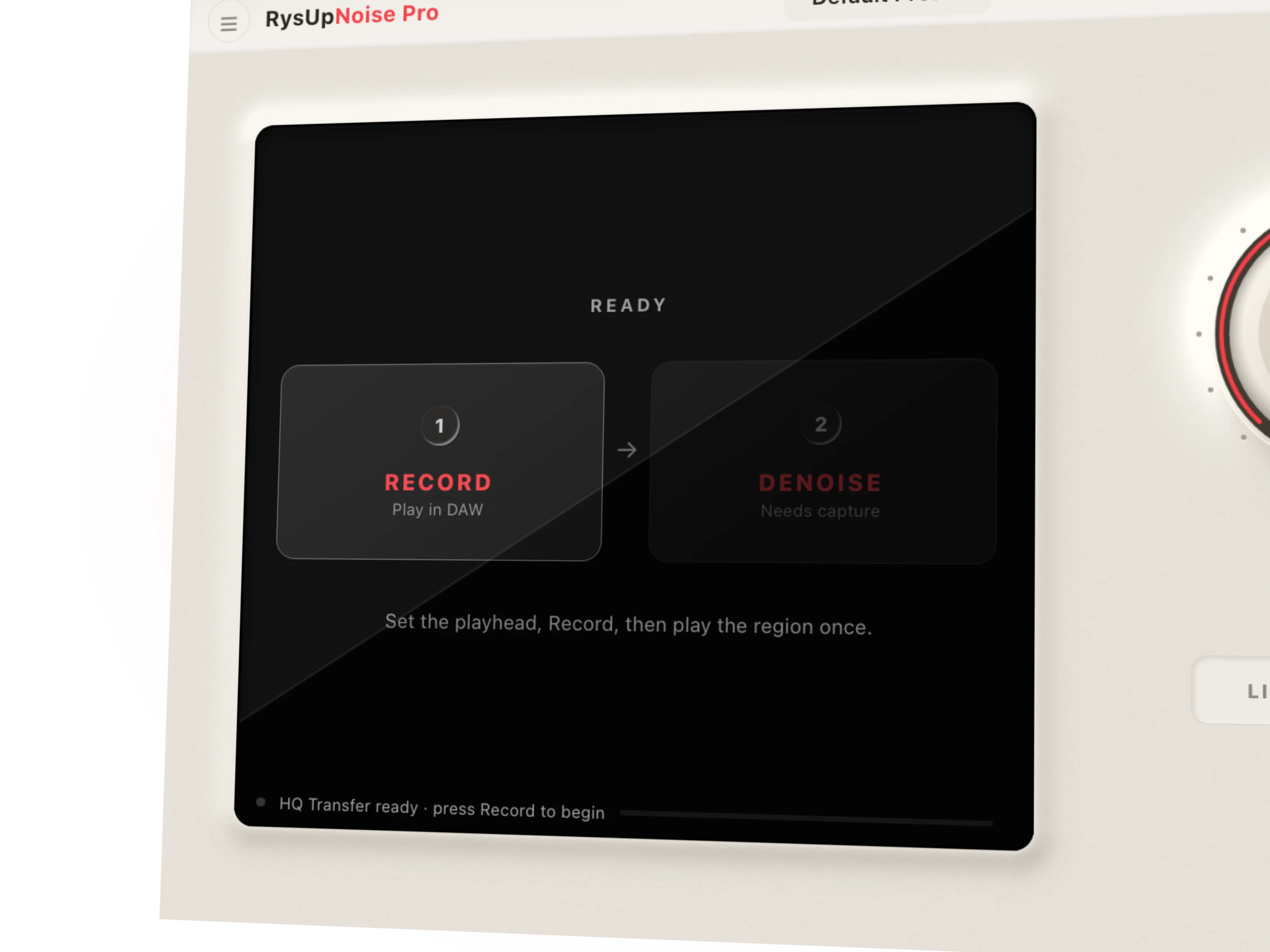
Transfer mode uses the normal plugin signal path. You arm capture, play the passage, and the plugin records the audio that reaches its insert. After capture, the plugin can analyze the whole passage, render a processed result, and provide playback or export controls.
The tradeoff is time. A ten second phrase takes about ten seconds to capture. The advantage is reliability across hosts because the DAW does not need to implement or bind an ARA extension.
Does transfer mode physically replace the region?
Not by itself. A standard AU, VST3, or AAX insert cannot silently rewrite a DAW region. A plugin can process playback, render a file, or expose a result for audition. The user or host still controls whether that rendered file replaces a region, lands on a new track, or stays as an insert effect.
That boundary protects the session. A cleanup plugin should not overwrite source audio without an explicit action. In RysUpNoise Pro, HQ Transfer lets you compare the original, denoised, and removed signals before exporting a WAV. You decide when the result earns a place in the arrangement.
The exact Logic Pro answer on Apple Silicon
Logic Pro supports ARA 2. That statement is true. It is also incomplete unless the Mac architecture is specified.
Apple states that the reason to run Logic Pro in Rosetta on an Apple Silicon Mac is to use a third party plugin such as Melodyne in ARA mode. Celemony explains the underlying issue: native Apple Silicon Logic hosts Audio Unit plugins outside Logic's own process, and that method does not yet fully support third party extensions such as ARA.
So the current workflow is:
- Native Apple Silicon Logic: use the normal Audio Unit and HQ Transfer. No restart into Rosetta is required.
- Logic running in Rosetta: a compatible ARA plugin can bind through the ARA version of the Audio Unit. Apple requires it in the first Audio Effect slot.
- Intel Mac: compatible ARA plugins can use Logic's ARA workflow.
Running Logic natively also preserves access to Apple Silicon features that Apple says are unavailable under Rosetta, including Stem Splitter, ChromaGlow, and most Mastering Assistant presets. For many producers, transfer mode is the cleaner choice because it avoids changing the launch mode of the entire DAW for one cleanup task.
Which workflow should you choose?
Choose ARA when region connected editing matters most
ARA is ideal when you want the plugin to follow region moves, copies, and timeline edits without recording the passage again. It is especially useful for detailed pitch, timing, and restoration work that remains open throughout the project.
Choose transfer mode when the session must keep moving
Transfer mode is the practical answer when ARA is unavailable, unreliable, or not worth changing the DAW launch mode. It works through the standard plugin format and keeps the workflow consistent across more hosts.
Choose real time processing for fast decisions
Not every phrase needs an offline pass. If the problem is steady fan noise, AC wash, hiss, or room tone, real time cleanup may be enough. Save the captured HQ workflow for exposed vocals, difficult room reflections, and passages where artifact control matters more than speed.
How HQ Transfer works in RysUpNoise Pro
- Insert RysUpNoise Pro on the vocal. Put it before compression, saturation, reverb, and delay so the model receives the cleanest available source.
- Switch to HQ Transfer. Arm Record and play the exact passage you want to restore.
- Run Denoise. The local AI engine analyzes the captured passage and reconstructs a cleaner waveform on your computer.
- Audition the evidence. Compare Original, Denoised, and Removed. Removed lets you hear what the model took away.
- Export only when it sounds right. Save the processed WAV and place it on a new playlist or track before replacing the source region.
The model runs locally. There is no cloud upload, and the original region remains under the DAW's control.
RysUpNoise Pro is also included in RysUpSuite. You can browse the full plugin lineup, install through the RysUpHub installer, follow the practical room, fan, and AC cleanup workflow, or read how the local restoration model rebuilds audio.
ARA and transfer mode questions
Is ARA 2 supported in Logic Pro?
Yes. Logic Pro supports ARA 2, but third party ARA extensions do not fully bind when Logic runs natively on Apple Silicon. Logic running in Rosetta can bind compatible ARA plugins.
Does transfer mode sound worse than ARA?
Not inherently. ARA and transfer mode describe how the plugin receives audio. Restoration quality depends on the model, source, and settings.
Can a plugin replace a Logic audio region?
A normal insert plugin does not silently rewrite the region. It can process playback or export a rendered file. You then place or replace that file in the Logic arrangement.
Official sources
- Apple Logic Pro User Guide: Support for ARA 2 plugins
- Apple Support: Turn off Rosetta for Logic Pro
- Celemony Help Center: ARA in Logic on Apple Silicon
- RysUpNoise Pro product and workflow page
Compatibility checked August 25, 2026. Host behavior can change in later Logic Pro, macOS, or plugin releases.