Download and install RysUpHub
RysUpHub is the desktop app that installs and licenses your Rys Up Audio plugins. Download the Mac or Windows version, run the installer, then open the app once installation finishes.
Download RysUpHubRysUpRack now syncs your purchased plugin-version vocal presets inside the plugin. Install RysUpRack with RysUpHub, sign in to My Presets, then click your preset to load the full vocal chain.
Plugin preset walkthrough
You no longer need to download, unzip, or hunt for a .rysrack file. RysUpHub installs the plugins, and RysUpRack securely syncs the RysUpAudio-format presets purchased on your account.
RysUpHub is the desktop app that installs and licenses your Rys Up Audio plugins. Download the Mac or Windows version, run the installer, then open the app once installation finishes.
Download RysUpHubUse the same email address you used when buying the preset. This lets the Hub unlock your available plugins and show the installers connected to your account.
Install RysUpRack first, then install and activate the Rys Up plugins used by your preset chain. The Hub shows every plugin available on your account.
View vocal pluginsAfter installing plugins, fully quit and reopen your DAW so it can scan the new AU, VST3, or supported plugin format. On first launch, some DAWs may take a moment to rescan plugins.
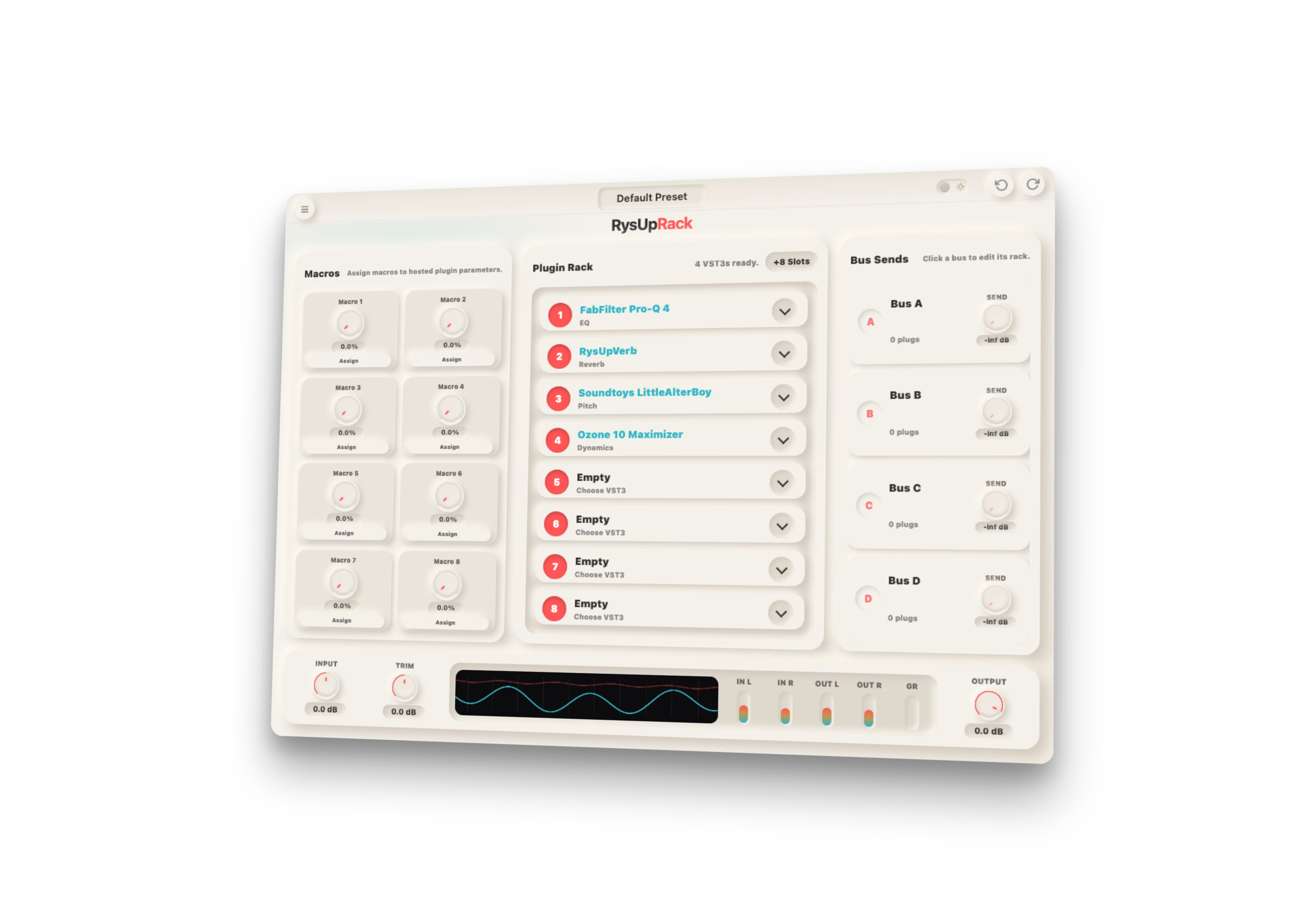
Create or select your main vocal audio track, open the insert/plugin menu, then load RysUpRack. Put it on the vocal track itself, not the master channel.
In the My Presets panel on the left side of RysUpRack, click Sign in. Finish signing in in your browser with the same customer account used at checkout. Your purchased RysUpAudio-format presets sync back to the plugin automatically.
For a single preset, click its cover art. For a bundle, click the cover art to open it, then choose a preset. You can also drag a preset from My Presets onto the rack. The full vocal chain and macro controls load automatically.
Start playback, check your input level, then adjust the macro knobs for low cut, air, compression, tuning speed, chorus, delay, and reverb until the preset fits your voice and beat.
Install RysUpRack first. Then install every Rys Up plugin available on your account that the preset needs. A red status dot in My Presets means a required plugin is not owned or installed. If Rack shows an activation warning after loading the chain, open the Hub and activate that plugin.
Sign in with the customer account used to buy the RysUpAudio plugin version. Your purchases appear automatically. Click a single preset artwork, or open a bundle and click the preset name you want.
Click the refresh arrow in My Presets and confirm you used the same account as checkout. Only the RysUpAudio plugin version appears in Rack. As a fallback, download its .rysrack file from Account Downloads and drag it into the plugin. For help, open the support page.