
How to Mix Vocals in FL Studio 2026 — Complete Vocal Chain Guide
FL Studio is the most popular DAW for hip-hop, trap, and R&B producers worldwide — and for good reason. It's affordable, powerful, and the workflow for beat-making is unmatched. But when it comes to mixing vocals? Most FL Studio producers are leaving a serious amount of quality on the table.

Your vocals sound thin. Or harsh. Or they're drowning in reverb and disappearing in the mix. You've watched the tutorials, tried the settings, and it's still not hitting the way it should.
Here's the thing: FL Studio's native plugins are actually capable of producing professional-quality vocal mixes. The problem isn't the DAW — it's the chain order, the settings, and the workflow. This guide breaks all of it down.
By the end of this, you'll know exactly how to build an FL Studio vocal chain from scratch, what each plugin does and why, and how to get studio-quality vocals out of your home setup. Let's get into it.
Setting Up Your Vocal Recording in FL Studio
Before you even open a plugin, your vocal needs to hit the Mixer correctly. This part catches a lot of producers off guard because FL Studio handles routing differently from DAWs like Logic Pro or Ableton.
If Logic Pro is your session, compare dedicated, editable starting chains in the Logic Pro vocal preset collection instead of translating settings from another DAW.
When you record vocals in FL Studio, you're recording into the Mixer — either via Edison (FL's built-in recorder) or directly through a Mixer track assigned to your audio interface input. Either way, your vocal track lives in the Mixer, and that's where your entire signal chain runs.
If the input route is still unclear, use the complete FL Studio vocal recording workflow before building the mix chain.
Here's what to check before you start stacking plugins:
- Gain stage on input: Your vocal should be peaking around -12 to -6dB on the Mixer channel. Not clipping, not buried. Give your plugins headroom to work with.
- Sample rate: For vocals, 44.1kHz is standard (Spotify, Apple Music). 48kHz if you're scoring to picture or working on video. Don't mix the two in a project.
- Mono check: Raw vocals should be mono unless you're doing a stereo double-track effect. Mixing a mono vocal in stereo from the jump creates phase issues later.
- Bus routing: Route your vocal track to a dedicated Vocal Bus in the Mixer. This lets you apply group processing and keep things organized as you add more vocal layers.
The FL Studio Vocal Chain — Plugin Order Matters
This is where most producers go wrong. The order of your plugins in the Mixer chain is just as important as the plugins themselves. Think of it like a signal path: audio flows left to right through your chain, and every plugin gets the output of the previous one.
Here's the standard vocal chain order that works in FL Studio:
- High-pass filter (Parametric EQ 2)
- Noise gate
- De-esser
- Primary EQ (Parametric EQ 2)
- Compressor
- Saturation (optional)
- Secondary EQ (cleanup pass)
- Pitch correction (Pitcher or Newtone)
- Reverb and delay (as sends)
Let's break down each stage with specific settings for FL Studio's native plugins.
Step 1: High-Pass Filter — Cut the Garbage First
Open Parametric EQ 2 as the first plugin in your chain. Your first move is a high-pass filter (HPF) to cut everything below 80-100Hz on a standard vocal. On a deeper male voice, go as low as 60Hz. On a lighter female or pop vocal, you can push that cut up to 120Hz.
Why? Because everything below that range is low-end rumble, HVAC noise, floor vibrations, and mic handling noise. It's not vocal content, and it's eating up headroom in your mix. Cut it before it hits anything else in your chain.
In Parametric EQ 2: click the leftmost band, select "Low cut," set the frequency to 85Hz, and set the slope to 18dB/oct for a clean cut.
Step 2: De-Essing — Tame Those Harsh S's
De-essing is the move that most beginners skip and then wonder why their vocals sound harsh and sibilant. The S, T, and CH sounds in a vocal performance can spike 6-10dB above the rest of the signal, and if you compress before you de-ess, your compressor just pumps on every sibilant hit.
FL Studio doesn't have a dedicated de-esser plugin natively, but you can build one using Fruity Peak Controller sidechained to a narrow band in Parametric EQ 2, or use Maximus in multiband mode targeting the 6-10kHz range.
The Maximus approach:
- Load Maximus on your vocal channel
- Set it to 3-band mode
- Focus on the high band (6-16kHz)
- Set the threshold so it only compresses on loud sibilant peaks
- Fast attack (1-5ms), medium release (50-80ms), ratio around 4:1
If de-essing feels like too much to set up manually, this is exactly where a pre-built FL Studio vocal preset saves you the headache — the de-esser settings are already dialed in.

Step 3: Primary EQ — Shape the Tone
Now we get into the actual tone shaping. Parametric EQ 2 is legitimately one of the best stock EQs in any DAW. Image-Line built it right. Use it.
For a hip-hop or trap vocal, here's a starting framework:
- 200-400Hz (mud zone): Narrow cut of 2-4dB somewhere in this range. This is where vocal muddiness lives. Use your ears and hunt for the frequency that makes the vocal sound "boxed in," then cut it.
- 800Hz-1kHz (honky zone): Listen for any nasal, honky quality. If it's there, a narrow 2-3dB cut fixes it fast.
- 2-5kHz (presence zone): A gentle boost here (1-3dB) brings the vocal forward in the mix. This is the frequency range that makes vocals cut through. Don't overdo it or you'll get harshness.
- 8-12kHz (air zone): A subtle high-shelf boost (1-2dB) adds that open, airy quality you hear on polished releases. Keep it gentle — too much and the vocal sounds hyped and unnatural.
Every voice is different. These are starting points, not rules. Use your ears and reference against professional mixes you like.

Step 4: Compression — Lock in the Dynamics
Compression is the glue. An uncompressed vocal performance has wild dynamic swings — some words are too loud, some too quiet, and it fights everything else in the mix. Compression smooths that out and gives the vocal a consistent, present sound.
For FL Studio's Fruity Compressor:
- Threshold: Start at -18dB and adjust until you're getting 4-8dB of gain reduction on the loudest peaks
- Ratio: 3:1 to 4:1 for a natural, transparent compression. Push to 6:1 for more aggressive control on trap vocals.
- Attack: 10-20ms — fast enough to catch transients but slow enough to let the initial consonants through (this is what gives the vocal its "snap")
- Release: 60-100ms for natural breathing. Auto-release is also solid in Fruity Compressor.
- Gain/Makeup: Turn up the output to compensate for the gain reduction. Your vocal should hit the same level as before compression — just tighter and more controlled.
If you want more transparent compression, Maximus in broadband mode gives you more control over the knee and the look-ahead settings than Fruity Compressor does.
Step 5: Pitch Correction — Pitcher and Newtone
FL Studio comes with two pitch tools:
- Pitcher: Real-time pitch correction. Works like Auto-Tune — dial in your key and scale, set the speed (lower = more natural, higher = more robotic/trap effect). Lives in the Mixer chain.
- Newtone: FL's melodyne-style pitch editor. Clip-based correction where you manually drag notes into pitch. More precise, better for pop and R&B vocals where natural pitch matters.
For trap and hip-hop, Pitcher on a medium-fast setting (around 50% speed) is the standard. For melodic vocals, go into Newtone and correct the worst notes manually — you'll hear the difference versus blindly automating everything.
Real talk: if you're doing heavy pitch processing and want the correction to actually sound good instead of robotic or glitchy, the processing order matters. Run pitch correction after your EQ and compression, not before. Otherwise your EQ is shaping a partially-pitch-corrected signal and the artifacts get baked in.

Step 6: Reverb and Delay — Always Use Sends
The number one FL Studio vocal mixing mistake: throwing reverb directly on the vocal channel.
When you put reverb as an insert effect on the vocal itself, the wet signal blends with the dry signal and makes the vocal sound distant, washy, and buried in the mix. Instead, use a send/return setup:
- Create a new Mixer track — name it "Vocal Reverb"
- Load Fruity Reverb 2 on that track — set it to 100% wet
- On your vocal track, use the send routing to send a portion of the signal to the Reverb track
- Use the send level to control how much reverb you hear — the dry vocal is always fully intact
This keeps your vocal forward and present in the mix while still having space and dimension. For delay, same setup — separate Delay track using Fruity Delay 3 at 100% wet.
For a modern hip-hop or trap vocal, you want subtle room reverb (short decay, 0.8-1.2 seconds) and a quarter-note or eighth-note delay that sits behind the vocal without competing with it. A simple high-pass on your reverb return track (cut below 200Hz) keeps the low end from getting muddy.
Using Vocal Presets to Speed Up Your Workflow
For rap sessions, compare the tonal directions in the Hip Hop and Rap vocal preset collection, then choose the FL Studio version of the selected product. Keep the recording and routing steps in this guide; the genre collection helps choose the starting sound, while the DAW choice determines which file you can load.
Setting up that entire chain from scratch on every session takes time. And for most producers — especially if you're working on multiple tracks, juggling beats, writing, and recording — rebuilding the same chain repeatedly is a workflow killer.
That's where FL Studio vocal presets come in. Instead of spending 45 minutes dialing in your EQ curves, compressor settings, and de-esser thresholds, you load a preset chain that's already tuned for the sound you're going for — and adjust from there.
The presets from our collection are built specifically for FL Studio's plugin format, so there's no compatibility guesswork. Load them directly into your Mixer channel, reference the included settings notes, and you've got a professional starting point in under a minute.
This isn't about skipping the learning — it's about not starting from zero every time. Once you understand what each plugin in the chain is doing (which this guide covers), you can tweak preset chains intelligently and get faster results than building blind from scratch.
Common FL Studio Vocal Mixing Mistakes
Before you call it a mix, run through this list:
1. Not Checking in Mono
A lot of FL Studio producers mix in stereo and never check mono compatibility. When your track gets played on a phone, a Bluetooth speaker, or a club PA, the low-end reverb wash and wide stereo effects collapse. Hit the mono button on your master output and make sure the vocal still cuts through.
2. Clipping the Input Signal
If your mic is hitting the Mixer input hot (red in the meter), you're adding analog-style distortion before any processing. That's not the vibe for clean vocals. Back off the preamp gain on your interface, get a clean signal, then use makeup gain in your compressor to bring levels back up.
3. Too Much Reverb on the Lead Vocal
Leads hit harder when they're dry and present. Use reverb sparingly on the lead — if you're hearing it clearly as reverb, it's probably too much. Save the big room sounds for backing vocals and harmonies.
4. Ignoring Automation
FL Studio's automation clips are fire for volume riding. Instead of fighting your compressor to even out the dynamics, draw in a simple volume automation curve that brings up the quieter phrases and tames the loud ones. Your compressor then has a more consistent signal to work with and sounds more natural.
5. Comparing to the Wrong Reference
If you're mixing vocals against beats you made without reference tracks, your ears are lying to you. A/B your mix against a professional track in a similar genre — Drake, Travis Scott, whatever aligns with your sound. If your vocals aren't sitting the same way in the mix as those tracks, you've got more work to do.
FL Studio Vocal Chain Templates to Save
Once you've dialed in a vocal chain you like in FL Studio, save it as a Mixer preset. Go to your Mixer track, click the save icon, and FL Studio will store the entire effects chain with settings for future sessions. You can also export the chain as a template and share it with collaborators.
This is how professional FL Studio producers move fast — they've got 3-5 saved vocal chain templates for different genres or vocal styles, and they load the right one at the start of each session. No rebuilding from scratch, no guesswork.
If you want to skip the template-building process entirely, our FL Studio vocal presets are ready-to-use chains that cover hip-hop, trap, R&B, and more. Each one is formatted for FL Studio specifically — no conversion, no compatibility headaches.
Quick Reference: FL Studio Vocal Chain at a Glance
| Chain Position | Plugin (Native) | Purpose |
|---|---|---|
| 1 | Parametric EQ 2 | High-pass filter (cut below 80-100Hz) |
| 2 | Maximus (high band) | De-esser (6-10kHz dynamic control) |
| 3 | Parametric EQ 2 | Primary tone shaping (cut mud, boost presence) |
| 4 | Fruity Compressor / Maximus | Dynamic control (3:1-4:1 ratio, 10-20ms attack) |
| 5 | Parametric EQ 2 | Secondary cleanup pass |
| 6 | Pitcher | Pitch correction (tune to key/scale) |
| 7 (send) | Fruity Reverb 2 | Space and depth (100% wet on send track) |
| 8 (send) | Fruity Delay 3 | Rhythmic echo (100% wet on send track) |
What's Next After You've Got the Chain Down
Once your single vocal is sounding clean, the next level is layering. Double-tracks, harmonies, adlibs — each one needs its own chain, and they all need to work together without fighting for space.
For doubles, use identical processing to the lead but with a slightly different reverb send level and a small (10-20ms) stereo delay panned hard left and right. This creates width without making the lead vocal sound distant.
For harmonies, roll off more low-end (high-pass around 150-200Hz), compress harder, and use more reverb than the lead. Harmonies should support the lead, not compete with it.
For adlibs, de-ess aggressively, turn down the level significantly (adlibs are background energy, not lead content), and let them swim in reverb and delay to create dimension.
This is the vocal stacking technique you hear on every major trap and hip-hop record — clean lead, tight doubles, textured harmonies, washy adlibs. FL Studio handles all of it natively if you set the routing up right.
If you want to hear what these settings sound like on real vocals before buying anything, check out the free vocal presets — they're built with the same approach described in this guide.
FAQ: How to Mix Vocals in FL Studio
What is the best vocal chain order in FL Studio?
The standard FL Studio vocal chain order is: high-pass filter → de-esser → primary EQ → compressor → secondary EQ → pitch correction → reverb and delay (as sends). Running your chain in this order ensures each plugin is working on a clean, shaped signal rather than fighting against noise or dynamic issues that earlier stages haven't addressed yet.
Does FL Studio have a de-esser plugin?
FL Studio doesn't have a dedicated de-esser natively, but you can build one using Maximus in multiband mode targeting the 6-10kHz frequency range. Set the attack fast (1-5ms), the release around 60-80ms, and the threshold so it only triggers on the loudest sibilant peaks. Alternatively, third-party de-essers like FabFilter Pro-DS work perfectly in FL Studio.
How do I get rid of muddiness in FL Studio vocals?
Muddiness in FL Studio vocals almost always comes from frequency buildup between 200-400Hz. Open Parametric EQ 2, sweep a narrow band (high Q value) through that range while boosting temporarily to find the frequency that sounds worst, then cut it by 2-4dB. Also make sure your high-pass filter is active and cutting everything below 80-100Hz. If the muddiness is still there, check your reverb send — too much reverb on a vocal buries it and creates a washy, muddy sound.
Should I use Fruity Compressor or Maximus for vocals in FL Studio?
Both work, but they sound different. Fruity Compressor is simpler and faster to set up — great for basic dynamic control. Maximus gives you multiband compression, a more detailed knee control, and look-ahead, making it more versatile for complex vocal dynamics. For most hip-hop and trap vocal work, Fruity Compressor at 3:1-4:1 ratio gets you there. If you're doing pop or R&B vocals that need smoother, more transparent compression, spend time with Maximus instead.
What are the best FL Studio vocal presets for hip-hop?
The best FL Studio vocal presets for hip-hop are ones built specifically for FL Studio's Mixer format and tuned for the frequencies and dynamics of rap vocals — tight compression, controlled de-essing, presence boost in the 3-5kHz range, and subtle room reverb via send. Rys Up Audio's FL Studio vocal presets are built exactly this way and are compatible with FL Studio 20 and newer. They're a reliable starting point that you can adjust to match your specific vocal style.
Bottom Line
FL Studio is more than capable of producing professional vocal mixes. The native plugins — Parametric EQ 2, Fruity Compressor, Maximus, Pitcher — are genuinely solid tools that just need to be set up correctly and used in the right order.
The chain is: filter → de-ess → EQ → compress → correct → send effects. That order matters. The settings matter. And using reference tracks to check your work matters.
If you want to cut the trial-and-error and start from a professional baseline, our FL Studio vocal presets give you a ready-to-go chain that covers hip-hop, trap, and R&B. Adjust from there. Your vocals are about to hit different.
Got questions about FL Studio vocal mixing or running into a specific issue? Reach out to our team — we're here to help.
Want to skip the setup and go straight to the best options? Check out our full guide: Best FL Studio Vocal Presets 2026 — Pro Sound in One Click.
Pair Your Vocals With RysUp Plugins
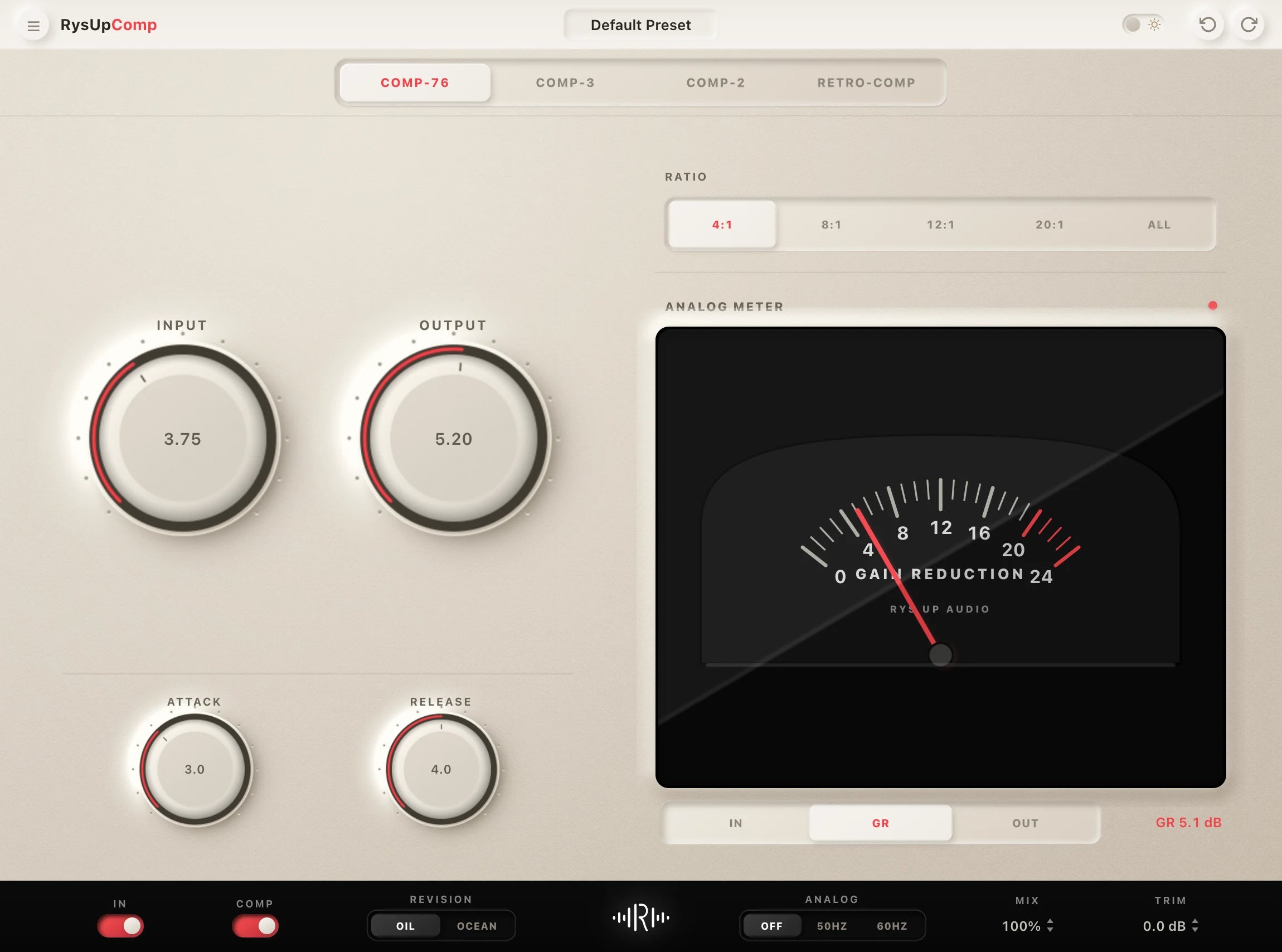
If you want to upgrade your vocal chain, every plugin in the RysUp collection is built specifically for vocal production — modern codebase, weekly updates, no iLok, and a fraction of the cost of legacy software.


Make the workflow repeatable
Start from a ready FL Studio vocal chain
Apply the gain, EQ, compression, de-essing, and space decisions from this guide faster with an editable Rys Up chain built for FL Studio.
Find your FL Studio vocal preset
Room noise gets louder after compression. Compare vocal noise cleanup workflows before building the rest of the Mixer chain.
Building a robot vocal inside this DAW? Compare two current free vocoder plugins before choosing a paid workflow.
Controlling S sounds in this chain? The same de essing setup works with stock or third party processors.
Need the dynamics stage broken down? Use this vocal compressor settings guide for ratio, attack, release, gain reduction, and a level matched test.